

Adding Cards to Your Deck
Once your deck has at least one category, you can start adding cards. There are three ways to do it, depending on your situation.
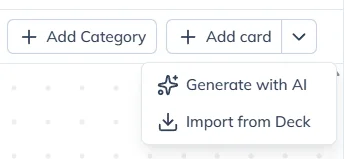
Add a Card Manually
The simplest option. Click Add card in the toolbar, pick the category, and a blank card is created with all your deck's fields ready to fill in.
This is the best choice when:
- You're creating cards one at a time
- You want full control over every field
- You're just getting started and want to understand how cards work
Generate with AI
Click the dropdown arrow next to "Add card" and choose Generate with AI. Describe what you want, and the AI creates one or more cards for you.
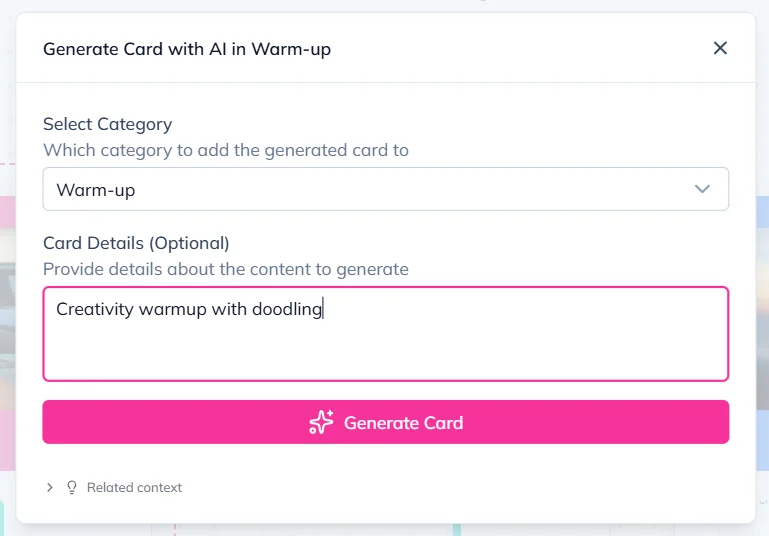
This is the best choice when:
- You need many cards quickly
- You have a general idea but don't want to write every detail
- You want the AI to fill in your custom fields based on your deck structure
Import from Another Deck
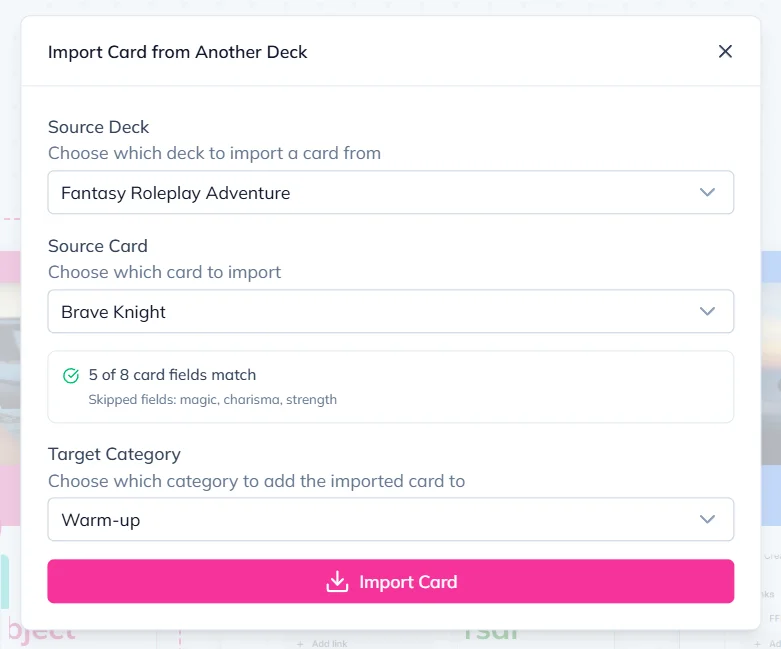
Click the dropdown arrow next to "Add card" and choose Import from Deck. Pick one of your existing decks, select a card, and it gets copied into your current deck.
This is the best choice when:
- You have a card in another deck that you want to reuse
- You're building a revised edition or themed subset of an existing deck
- You want to combine cards from multiple decks into one
How field matching works
When importing, the system compares the fields in both decks. Fields with the same name and type (like a text field called "title" in both decks) are carried over. Fields that don't match are skipped.
Before you confirm, you'll see exactly how many fields match, so you always know what you're getting.
After Adding
No matter which method you use, new cards are always added as unsaved drafts. You can review, edit, or delete them before saving. Nothing is permanent until you hit Save.