

Assign Colors in a Template
How to Assign Colors to an Element
Go into your template library, find the template that you want to edit, open it in the template designer.
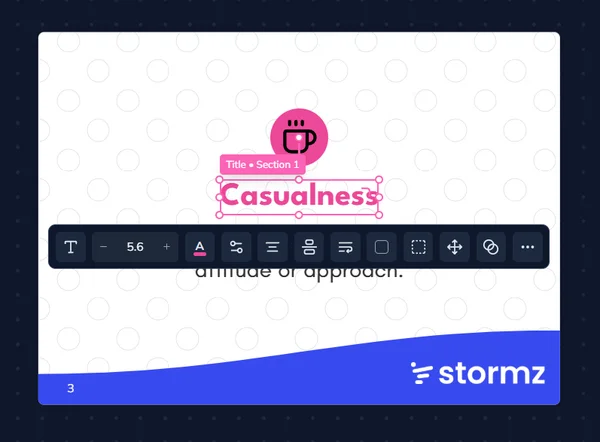
- Select the element you want to assign a color to (text, shape, container)
- In the element toolbar, find color controls: text color, background color, or border color buttons.
- Click the color button to open the menu and click "more colors" to open the color picker.
The Color Picker
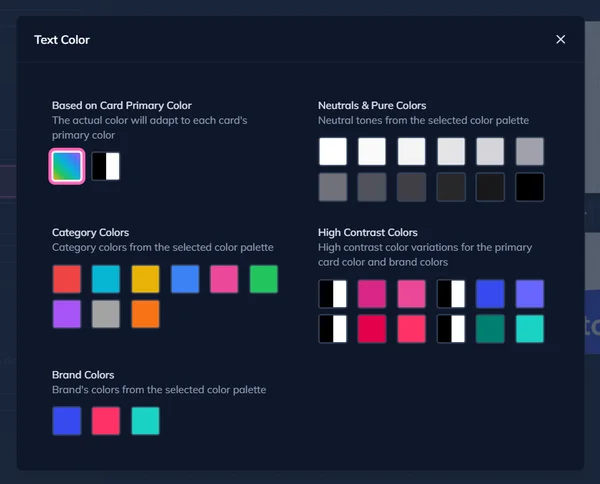
Click any swatch to assign that color token to the selected element.
Assign a Color Based on Card Primary Color
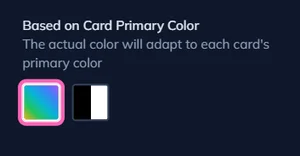
The two most powerful swatches:
- Primary Color (rainbow icon) - Uses each card's primary color. Depending on how the deck is setup, cards can show different colors with the same template.
- High Contrast (black/white icon) - Auto-selects black or white based on the primary color for maximum readability.
For example, the following Task card from the AI Tinkerers Cards deck has a primary color of pink for the background and is using the high contrast token, which in this case resolves to black, for the text.
Category Colors & Brand Colors
Direct access to your palette's category and brand colors.
Neutrals & Pure Colors
Grays for structure: backgrounds, borders, subtle text.
High Contrast Colors
Readable variants of primary and brand colors, adjusted for light or dark backgrounds. Use these when you need a category or brand color as text on a colored background.
Create a Color Palette
Define the color palette for your deck using the palette editor in the deck builder. Configure brand colors, category colors, neutral colors, and contrast variants.
Define the Card Primary Color
Set the primary color for your deck, categories, and individual cards to establish visual identity and card differentiation.